

https://oauth.subtotal.com. Its current endpoints and capabilities are published at:
1. Request authorization
Generate a high-entropystate value and an RFC 7636 PKCE verifier for each attempt. Save both in a short-lived, server-side install session.
If a user belongs to multiple dashboard teams, Subtotal asks them to choose which team will grant access. The token response’s
subtotal_client_id identifies the selected team.
Partner apps do not negotiate permissions. Requests for a subset, an additional scope, or a duplicated scope value are rejected.
2. Handle the callback
Subtotal redirects the browser to the allow-listed URI after the brand approves, denies, or encounters an authorization error.
Before exchanging the code:
- If
erroris present, stop the flow and show an appropriate message. - Compare
stateto the value in the install session using a constant-time comparison. - Reject missing, expired, or mismatched state.
- Load the corresponding PKCE verifier and delete the install session after use.
3. Exchange the authorization code
Call the token endpoint from your server. Supply the Client ID and client secret from Created Apps with HTTP Basic, and send form-encoded parameters.
The response has this shape:
A successful exchange activates the app installation for the selected dashboard team and starts configured webhook delivery.
Identify the app and installation
The authorization flow uses two identifiers with different sources:
Store
subtotal_client_id with the installation. It identifies the dashboard team that granted access; do not infer that team from the person who completed consent. An installation is unique to one app and dashboard team. Reauthorizing the same pair updates the existing installation instead of creating another one.
Each refresh-token rotation starts a new 30-day lifetime. Track expiry using the response values rather than hard-coded durations. Keep tokens encrypted on your server, out of browser storage, URLs, and logs.
4. Refresh access tokens
Use the current refresh token when the access token is near expiry. Authenticate the app with HTTP Basic and send form-encoded parameters.
A successful refresh preserves all three scopes and returns the same fields as the code exchange, with new tokens and expiry values. Refresh only once at a time per installation. Save all returned values in one atomic update before the next refresh, and always use the newest refresh token.
Retries and recovery
After a timeout, network failure, or temporary server error, retry promptly with the same refresh token. If the first request succeeded, retries return the same replacement refresh token and a fresh access token. The previous refresh token is retryable for 60 minutes from its rotation, or until its replacement is used for another refresh, whichever comes first. Retries do not extend this window or the replacement’s expiry. Reusing an older token or retrying after that window returns400 invalid_grant, revokes the installation’s refresh tokens, and disconnects the app, stopping new webhook delivery. Expired or revoked refresh tokens also return invalid_grant. On this error, stop retrying, pause background work, and ask the brand to authorize the app again.
Upgrade an existing installation
Installations authorized beforeretailers:read was included need fresh consent. Existing access tokens keep their original permissions until expiry; refreshing does not add the new scope. Authorization codes and refresh tokens with the old two-scope grant return invalid_grant.
- Have the brand click Install app again. Your Install URL must start a new authorization flow with all three scopes, or omit
scope. - Have the brand select the same dashboard team and approve access.
- Exchange the new code and replace the stored tokens for that installation.
5. Recover installation identity
If the callback succeeds but your state-to-installation mapping is lost, call/oauth/me with the access token. This endpoint has no query or form parameters.
6. Disconnect in Subtotal
A brand can open the installed app under Apps, select Disconnect, and typeDISCONNECT to confirm. This removes the app’s access to that brand’s data and stops sending new events to the app.
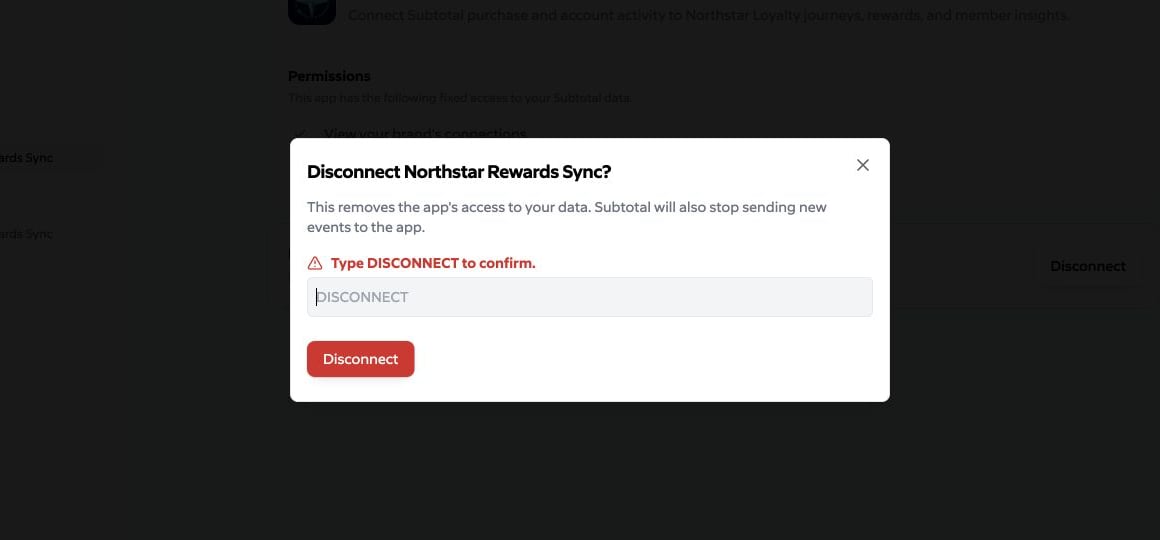
invalid_grant, stop background work and require reauthorization. To reconnect, send the brand through a new authorization flow.
7. Revoke from your service
If a brand uninstalls from your product, revoke its active refresh-token session. Authenticate with the app’s current Client ID and client secret.
Revocation returns
200 for known and unknown tokens. For a known token, it revokes active refresh tokens for that app and dashboard team, deactivates the Subtotal installation, and stops webhook delivery. Already-issued access tokens are self-contained and remain valid until their 15-minute expiry.