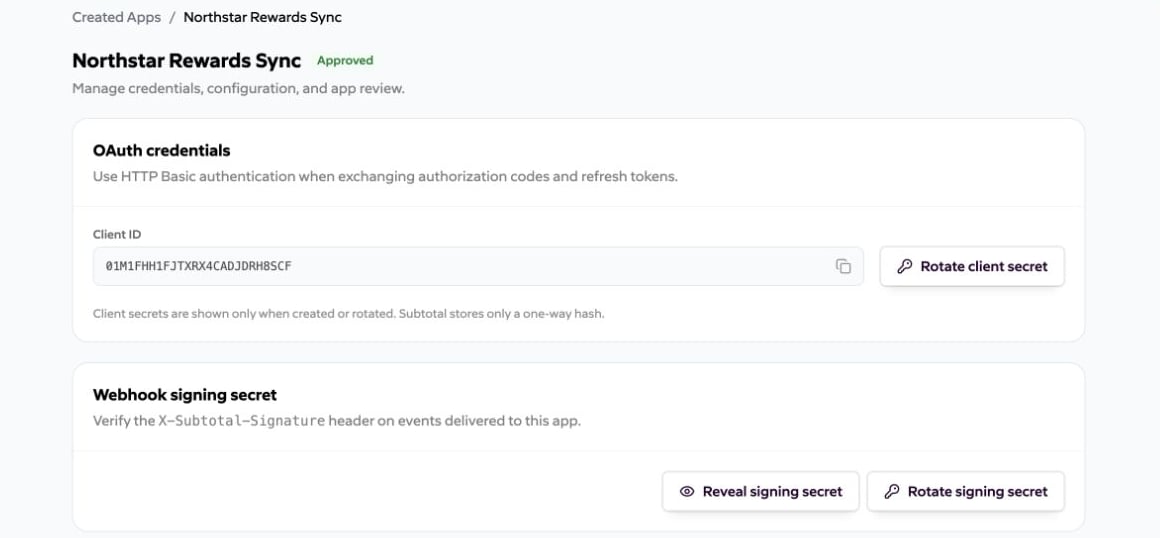
Create an app
Select Create app and complete the form with production-quality information. The dashboard team that creates the app owns it; that ownership cannot be changed after creation.Listing information
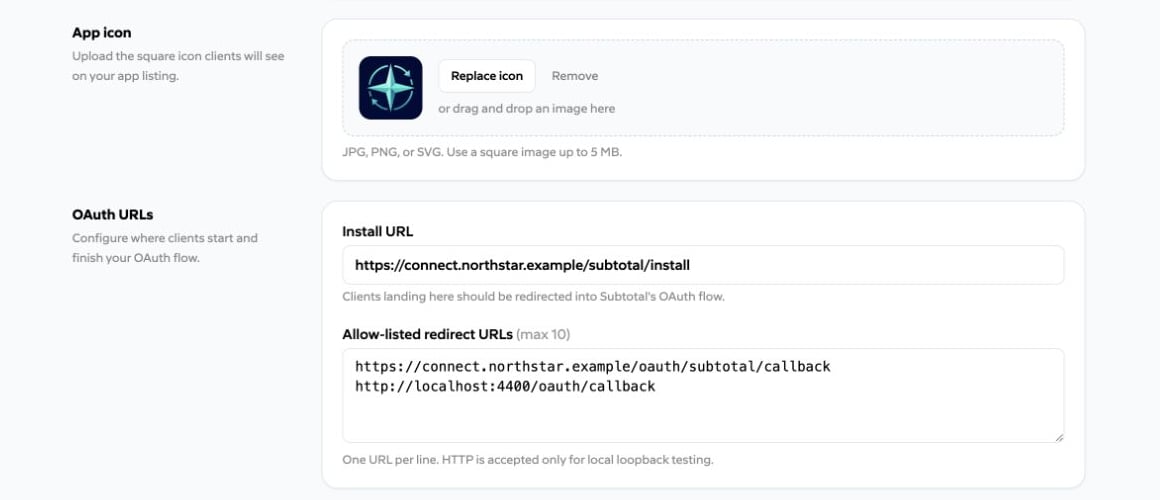
Use an icon that remains recognizable at small sizes. The uploaded icon is shown on the reviewed listing, approved authorization screen, and installed-app page.
OAuth URLs
The Install URL is a page you operate. When a brand opens it, your application should create state and PKCE values, then start a top-level Subtotal authorization request. Add every callback as an Allow-listed redirect URL. Subtotal performs an exact match during authorization.- Add no more than 10 redirect URLs.
- Use HTTPS in hosted environments.
- HTTP is accepted only for loopback development hosts:
localhost,127.0.0.1, or::1. - Keep local and production callbacks as separate entries.
Protect the app credentials
Subtotal creates two independent types of credentials.Client ID and client secret
The Client ID identifies the OAuth app and is not secret. The client secret authenticates your server to/oauth/token and /oauth/revoke.
- The client secret is shown only when the app is created or when you rotate it. Copy it immediately into a secrets manager.
- Never put the client secret in browser code, mobile apps, source control, screenshots, URLs, or logs.
- Subtotal stores only a one-way hash of the client secret and cannot recover it later.
- Rotate client secret invalidates the previous value immediately. Update your secret store and token-exchange service as one coordinated change.
Webhook signing secret
The signing secret verifies events delivered to the app’s webhook URL. It is separate from the OAuth client secret and can be revealed again from Created Apps. When you rotate it, Subtotal returns the previous signing secret during a 24-hour overlap. Accept signatures made with either value during that window, then remove the previous value. See Partner webhooks.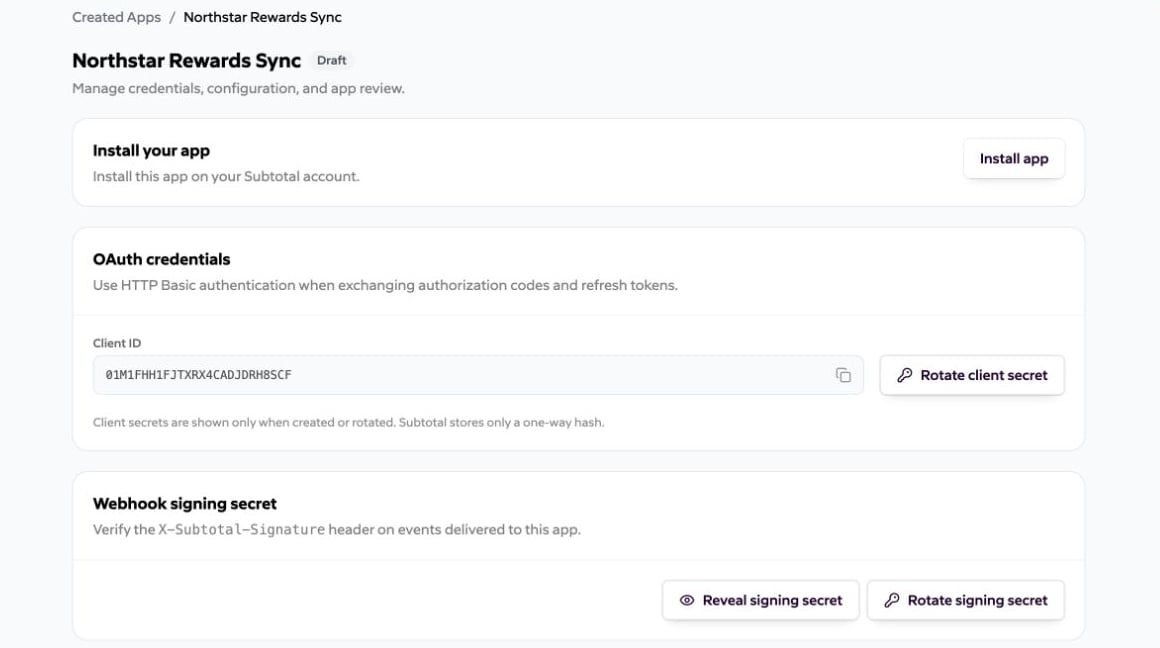
Install and test the app
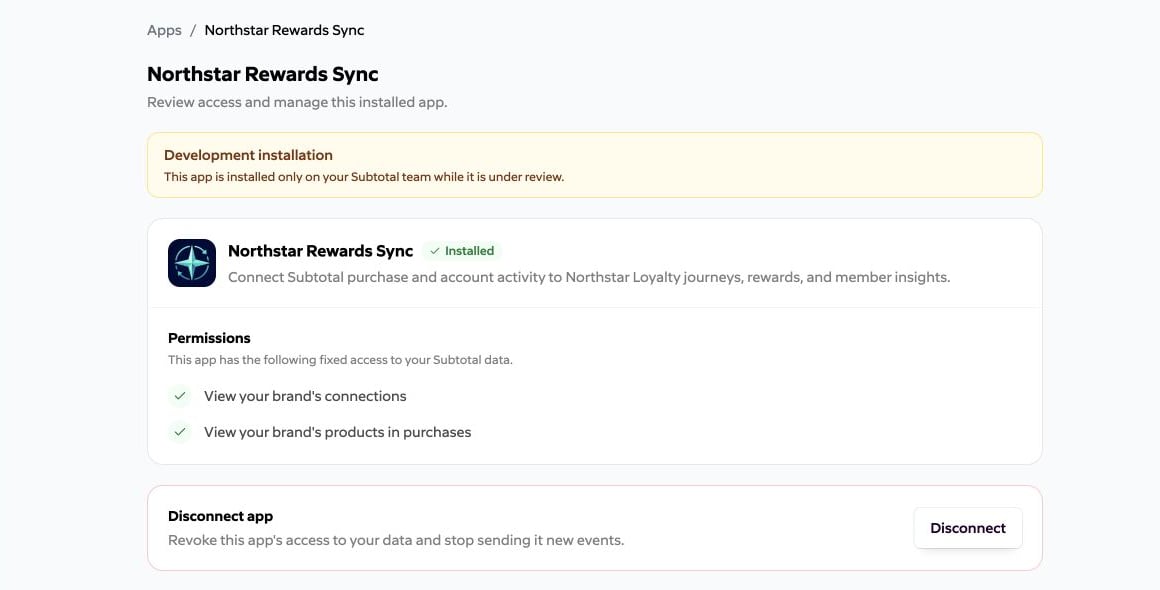
Select Install app before submission. It opens your Install URL, from which you must start the normal authorization-code flow. Until approval:- Only the dashboard team that owns the app can install it;
- The consent and installed-app pages identify it as a development app;
- An installation created while the app is a draft remains active during review;
- Submitted and rejected apps remain limited to the owning team and can continue using Install app.
Submit and approve
Select Submit for review after the listing, Install URL, redirect URLs, and integration behavior are ready. Submitted configuration is read-only.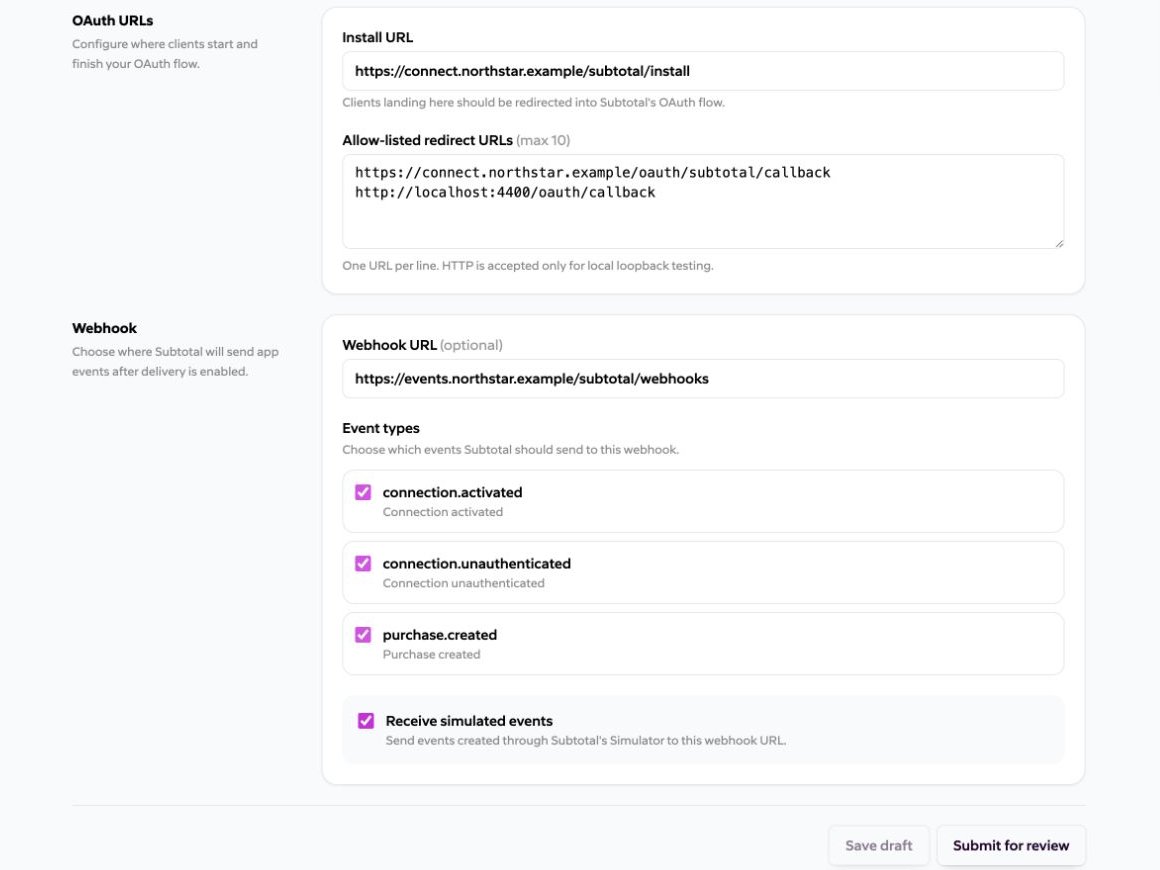
- The reviewed listing becomes available to other brands under Apps;
- Other brands can install the app;
- The partner team’s existing development installation is promoted in place, without creating a duplicate;
- The development label and Install app action in Created Apps disappear; and
- The configuration remains read-only in this onboarding release.