> ## Documentation Index
> Fetch the complete documentation index at: https://docs.subtotal.com/llms.txt
> Use this file to discover all available pages before exploring further.
# Create and submit an app
> Configure your listing, credentials, OAuth URLs, and review submission.
Once Subtotal authorizes your dashboard team to create apps, a team admin can create and manage them from **Apps → Created Apps**.
## Create an app
Select **Create app** and complete the form with production-quality information. The dashboard team that creates the app owns it; that ownership cannot be changed after creation.
### Listing information
| Field | Requirement |
| :------------------ | :-------------------------------------------------------------------------- |
| App name | A clear brand-facing name, up to 256 characters |
| Website URL | The app or partner website; HTTPS is required |
| Listing description | What the app does and why a brand should install it, up to 2,000 characters |
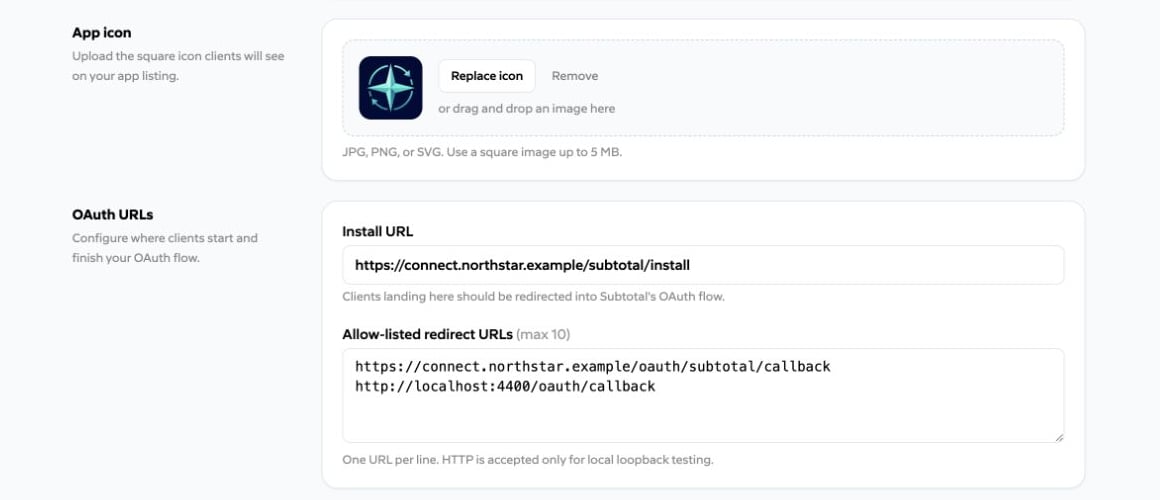
| App icon | JPG, PNG, or SVG; square; up to 5 MB |
Use an icon that remains recognizable at small sizes. The uploaded icon is shown on the reviewed listing, approved authorization screen, and installed-app page.
### OAuth URLs
The **Install URL** is a page you operate. When a brand opens it, your application should create state and PKCE values, then start a [top-level Subtotal authorization request](/docs/partner-apps/oauth).
Add every callback as an **Allow-listed redirect URL**. Subtotal performs an exact match during authorization.
* Add no more than 10 redirect URLs.
* Use HTTPS in hosted environments.
* HTTP is accepted only for loopback development hosts: `localhost`, `127.0.0.1`, or `::1`.
* Keep local and production callbacks as separate entries.
 ## Protect the app credentials
Subtotal creates two independent types of credentials.
### Client ID and client secret
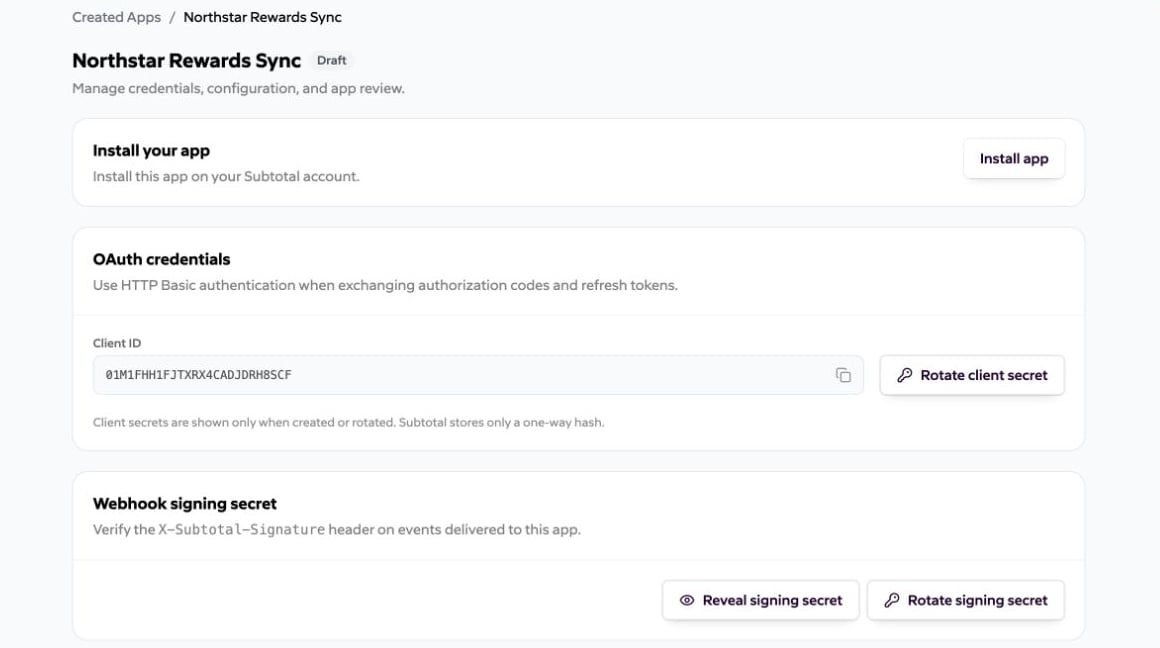
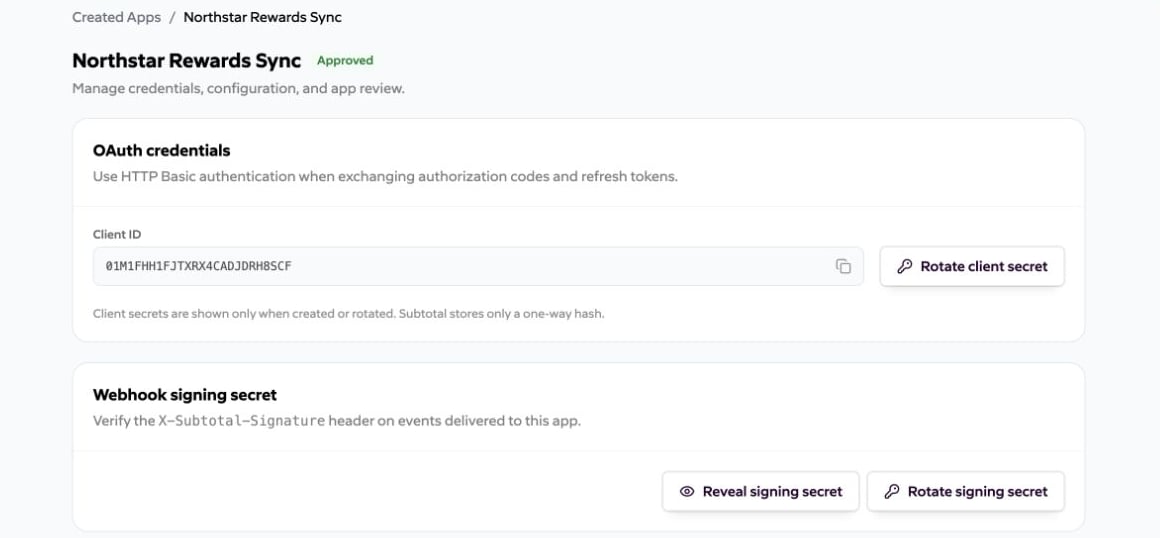
The Client ID identifies the OAuth app and is not secret. The client secret authenticates your server to `/oauth/token` and `/oauth/revoke`.
* The client secret is shown only when the app is created or when you rotate it. Copy it immediately into a secrets manager.
* Never put the client secret in browser code, mobile apps, source control, screenshots, URLs, or logs.
* Subtotal stores only a one-way hash of the client secret and cannot recover it later.
* **Rotate client secret** invalidates the previous value immediately. Update your secret store and token-exchange service as one coordinated change.
### Webhook signing secret
The signing secret verifies events delivered to the app's webhook URL. It is separate from the OAuth client secret and can be revealed again from **Created Apps**.
When you rotate it, Subtotal returns the previous signing secret during a 24-hour overlap. Accept signatures made with either value during that window, then remove the previous value. See [Partner webhooks](/docs/partner-apps/webhooks).
## Protect the app credentials
Subtotal creates two independent types of credentials.
### Client ID and client secret
The Client ID identifies the OAuth app and is not secret. The client secret authenticates your server to `/oauth/token` and `/oauth/revoke`.
* The client secret is shown only when the app is created or when you rotate it. Copy it immediately into a secrets manager.
* Never put the client secret in browser code, mobile apps, source control, screenshots, URLs, or logs.
* Subtotal stores only a one-way hash of the client secret and cannot recover it later.
* **Rotate client secret** invalidates the previous value immediately. Update your secret store and token-exchange service as one coordinated change.
### Webhook signing secret
The signing secret verifies events delivered to the app's webhook URL. It is separate from the OAuth client secret and can be revealed again from **Created Apps**.
When you rotate it, Subtotal returns the previous signing secret during a 24-hour overlap. Accept signatures made with either value during that window, then remove the previous value. See [Partner webhooks](/docs/partner-apps/webhooks).
 ## Install and test the app
Select **Install app** before submission. It opens your Install URL, from which you must start the normal authorization-code flow. Until approval:
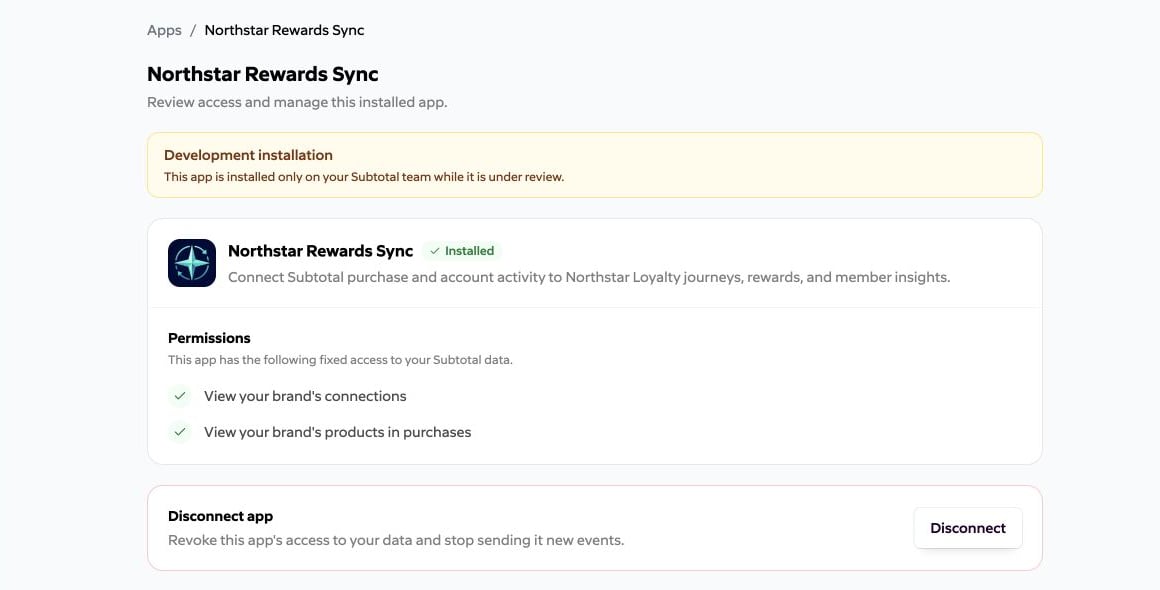
* Only the dashboard team that owns the app can install it;
* The consent and installed-app pages identify it as a development app;
* An installation created while the app is a draft remains active during review;
* Submitted and rejected apps remain limited to the owning team and can continue using **Install app**.
## Install and test the app
Select **Install app** before submission. It opens your Install URL, from which you must start the normal authorization-code flow. Until approval:
* Only the dashboard team that owns the app can install it;
* The consent and installed-app pages identify it as a development app;
* An installation created while the app is a draft remains active during review;
* Submitted and rejected apps remain limited to the owning team and can continue using **Install app**.
 ## Submit and approve
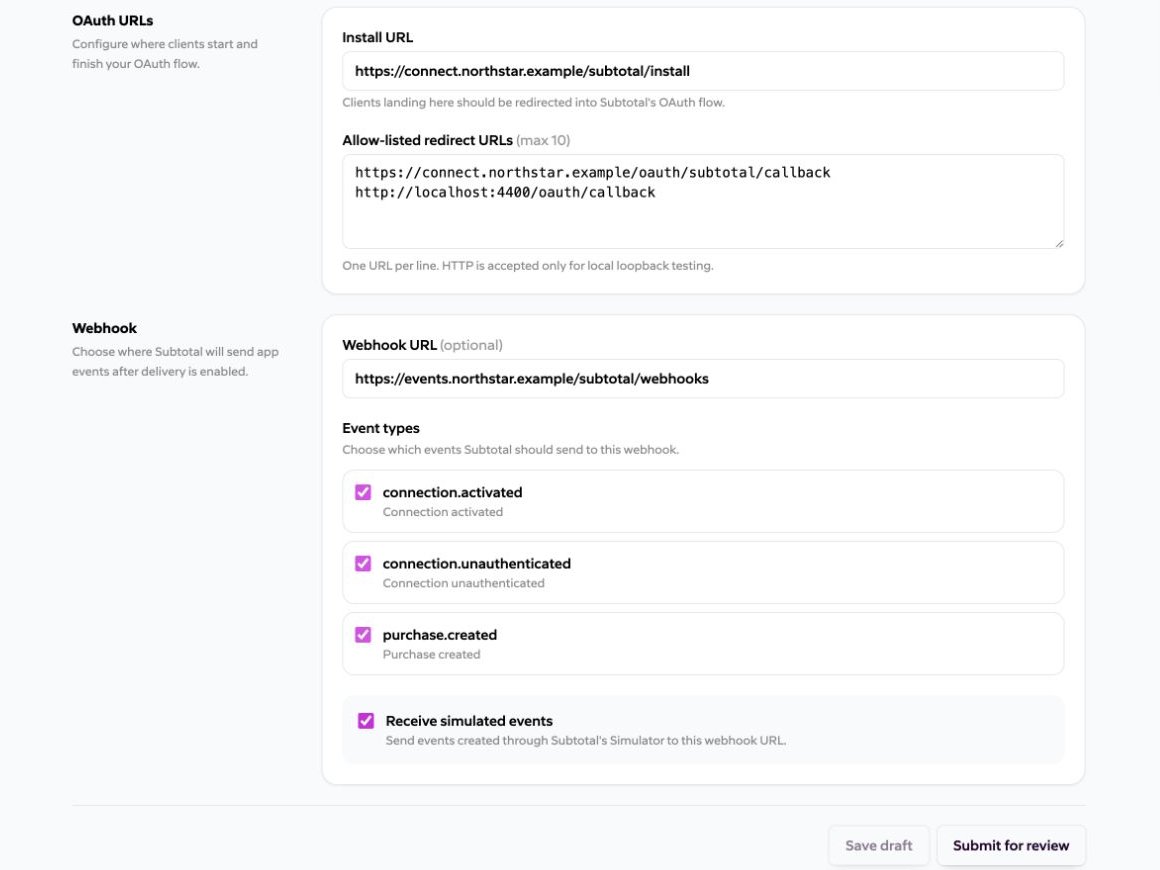
Select **Submit for review** after the listing, Install URL, redirect URLs, and integration behavior are ready. Submitted configuration is read-only.
## Submit and approve
Select **Submit for review** after the listing, Install URL, redirect URLs, and integration behavior are ready. Submitted configuration is read-only.
 After approval:
* The reviewed listing becomes available to other brands under **Apps**;
* Other brands can install the app;
* The partner team's existing development installation is promoted in place, without creating a duplicate;
* The development label and **Install app** action in **Created Apps** disappear; and
* The configuration remains read-only in this onboarding release.
After approval:
* The reviewed listing becomes available to other brands under **Apps**;
* Other brands can install the app;
* The partner team's existing development installation is promoted in place, without creating a duplicate;
* The development label and **Install app** action in **Created Apps** disappear; and
* The configuration remains read-only in this onboarding release.
 If Subtotal rejects a submission, review the notes, edit the app, save it back to draft, test again, and resubmit.